Showing posts with label iPhone How To's. Show all posts

Saturday, June 20, 2009

How to download Itunes on a computer

Itunes is a free software from Apple use to download software updates for Iphones and Ipods. The steps below shows how to download the software.


1. Go to the appple website , www.apple.com/itunes/download

2. On the left section of the webpage enter your email address and click the "download now" button highlighted in blue


3. Once asked if you want to run or save the program just click on "run"


4. Then just continue with the upcoming pages like reading and accepting the terms and coniditons etc. You will then reach the download wizard


5. Once the the download is finished, this is how the itunes program will look like:


Friday, June 19, 2009

How to do Reset Network Settings in the iPhone

Reset network settings is essential specially if your iPhone is not able to connect to a cellular data networ. Meaning you may not be able to use the iPhone either is making and receiving calls, making and sending MMS and SMS or connecting to the 3G internet. Doing the reset network setting is also applicable if the iPhone says "No service " at the top left corner of the iPhone where you should normally see the name of your network provider. The troubleshooting steps below shows you have to perform the reset network settings. It will erase whatever current connection you may have on he iPhone and then it will create a brand new connection. Your files won't be erase so you need not to worry about all the applications or information taht you have there on your iPhone.


Here are the steps.


1. From yout iPhone home screen, tap on the "Settings" icon


2. Onthe settings page, press on "General"


3. Then press on "Reset"


4. Then choose on "Reset network settings" , the middle option


5. Then you will be asked to confirm this action, just click the red button that says reset network settings button again


6. You will then see an Apple logo on the screen, just wait a couple of minutes and it should turn on again by itself and your done


7. If none of this works for your iPhone you may need to call your service provider to check if there are any restrictions on your service.


Thursday, June 18, 2009

How to do software upgrade for an Iphone

The steps below shows how to upgrade the software of an Iphone. As of this writing the latest version released by Apple is the Iphone OS 3.0. But if there will be new versions to come out it will have the same exact process. If there will be any changes I will keep it posted in this blog. Upgrading the Iphone's software is very easy, the upgrade may take about 15 mins at the least but may also take a bit longer than this depending on your computer's performance. Make sure you have all the follwing to do the upgrade:


> USB cable
> Iphone
> Computer with the latest version of Itunes.( If you don't have one yet you can type in the wor "Itunes"on the search field above to get your copy. The general procedure on how to download the Itunes software can also be found on this blog, just look for the topic "Iphone Operating system 3.0 ").

Here are the steps:

1. Open latest version of Itunes


2. Connect your Iphone to the USB port of your computer.

3. On some occasions, you might see a pop up box on your computer screen stating "A new iphone software version ( 3.0 or whatever comes available ) is available for the Iphone, would you like to download and install it now?" Just click on the "download and install"button. If you do not get this message box, proceed to the next step onwards.


4. On the left section of Itunes, you must see a "DEVICE"category. Underneath it, click the word "Iphone", it also have a small picture of it. If your Iphone cannot be detected by itunes, try to unplug the iphone from the computer and connect it on another USB port.


5. After clicking the iphone icon, you must see a summary screen on the main section of Itunes.


6. On the summary screen, you will see the "VERSION"section at the middle. Once there is a new software realese, there will be a message there that goes "A new version of the Iphone software is available, version 3.0 ( or whatever version is currently available). To update your iPhone click the "UPDATE"button.


7. The upgrade process will take place. The progress will be shown on your computer screen, stuffs like backing up files, copying files or transferring data etc will be prompted. Just allow about 15 mins or so to finish the update and you're done. You can then unplug the iphone from your computer


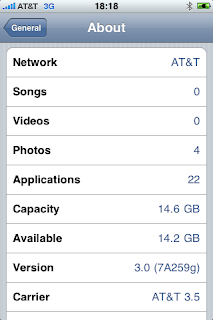
8. To verify if your softaware is been updated to the latest version, to your Iphone. Click on Settings> General > About > Version, under version you must see the there the latest update you got from Itunes

Tuesday, June 16, 2009

How to properly maintain Iphone battery

All Iphone handsets come with a a Lithium - Ion battery. Compared to a nicke - based batteries it is more dependable when it comes to holding of charge. Owners of Iphones must know how to properly maintain the battery to expect longer battery life performance. Below are some practical tips.

1. Avoid storing or exposing the Iphone to a direct sunlight or even inside a car where heat build up during hot temperature. Heat deteriorates the chemical components of the battery pack.

2. Always make sure that your Iphone have the latest software version. From time to time, Apple is finding ways to enhance the Iphone , including the battery performance,so if you want to be up to date, make it a habit checking for updates using Itunes.

3. If you have email configured in the Iphone, turn off push email by going to Settings > Fetch New Data> then set Push to OFF.

4. Turn off wifi if not in need.

5. Adjust the brightness of the screen. Try to dim it by going to Settings> brightness > then drag the slider to the left to decrease the intensity of the brightness.

6. Use the auto lock feature of the IPhone.

7. At least once per month, do a complete recharge cycle which means you have to fully drain the battery and recharge it 100%.

Now if you feel the battery of your Iphone seems to drain faster than the usual, try considering the factors like:

- Using the Iphone for watching movies/ streaming videos
- Excessive use of the Ipod
- Using applications and games

Now, if non of those factors affects your Iphone's battery, its about time you do a restore. The step by steps procedure can also be found in this blog, you may want to search for the topic "How to restore an Iphone". If restoring won't fix the issue, you have the option to send the iphone to service center. You cannot just replace the Iphone because of the fact that the battery pack is built in and you cannot open the backside of the handset.

Monday, June 15, 2009

How to create an Itunes store account or Apple ID

If you want to download applications using Apps store or music files in Itunes store , you will need to enter a username and password or an Apple ID. The steps below gives you the procedures.

1. Open Itunes. Make sure you have the latest version. You can download it free if you don't have one yet. Just type "Itunes"on the search field above so you will be routed to the download page.

2. On the left section of Itunes look for the category name Store and then underneath it click "Itunes Store". On the main section of the screen, click the "Sign in" button.


3. There will be a prompt appearing, click the "create new account"button


4. There will be a form coming out on the screen and just fill it up with your information and then continue.


5. You might come across with some other pages just continue until you reach the terms and continue page.


6. Once the registration is completed you will see a confirmation page and you're done.

Sunday, June 14, 2009

How to do "hard reset "on the Iphone

What does hard reset do for an Iphone? Doing the hard reset is normally recommended for resetting the hardware aspect of the IPhone. If we are about to associate it on a computer, it is the counter part of "restart", so it will completely power cycle the device. Now there are some Iphone issues that can be resolved by just doing this hard reset, below are the list:


->Screen froze or wont respond when tapping on the screen
->Screen went totally blank or black or no lights at all on the phone
->White screen
->Screen gets stucked on favorites page or on any applications page
-> any other hardware related issues


Now here are the steps how to perform the Hard reset:


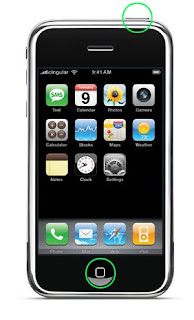
1. On your iphone, press and hold the two buttons together for about 10 seconds. One is the power button at the top while the other one is the Home button located underneath the screen .2. Just continue pressing the two buttons until you see an apple logo on the screen
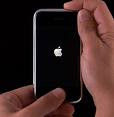

3. Once the apple logo comes out, release the two buttons and wait for a while, the Iphone will be booting up and just like a computer, it may take some time to fully load up.
4. Within 2 or 3 minutes, 5 minutes at the most you should have the home screen back and issue must be resolved

**** In case doing the hard reset wont fix the issue, you will need to connect it to Itunes and perform a restore


How to import sim contacts to Iphone

If you got an Iphone and you are wondering how you can save the contacts from your sim card to the iphones memory, you are on the right page. All you need to do is to import your sim contacts. :


1. First, you have to copy all your contacts form your old handset to the sim card.

2. Remove your sim from old handset and put it on your iphone

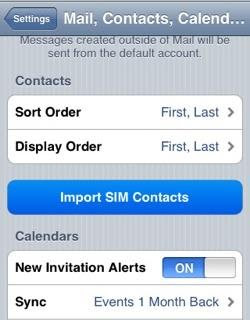
3. In the iphone screen , press on Settings> Mail,contacts calendars, contacts. Underneath the contacts tab you will see "Import SIM contacts"option.Just press on that and it will copy all contacts from your sim to the IPhone. This is how the screen looks like:


After you importing is done, verify if contacts were save by going to the home screen and press "Phone"icon, from there you should see them saved. If not, verify that you were able to copy all your sim contacts from your old handset.


However, copying the contacts from the Iphone to a SIM card is not applicable and it is one of the IPhone's limitation.

Saturday, June 13, 2009

How to Restore an Iphone

There are different reasons why you need to do a restore in Iphone.When you encounter an error message that goes "Restore needed" on the Iphone screen or if the iphone is placed in recovery mode, you can try doing some of the troubleshooting steps listed below.Some times when you make an attempt to do the restore in Itunes it will generate another error message which states "enter a passcode"or might state there was a locked sim and the sim pin has to be removed or something like that. You may try doing this steps & check if it will work. What ever reason it may be, here is the restore process that you can follow. The steps 1 to 6 applies only if your iphone is getting some sort of unusual behavior or error messages. But if you're not experiencing any issues and you just want to restore the iphone, or just want to put the handset to its factory settings, you can jump to step 7.


1. Turn off your Iphone by pressing the power button on top.

2. Once iphone is completely off,press and hold the two buttons together, one is the power button on top and the other one is the home key (square button underneath the screen). Make sure you are pressing them at the same time until a small Apple logo comes out.


3. Once you see an Apple logo release the power button but continue holding the home key

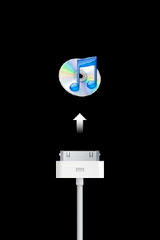
4. While holding just the home key you must acquire a USB cable logo & Itunes logo on the screen or either giving a logo stating it is in recovery mode.


5. Once you have acquired the logo, connect the iphone to Itunes, Itunes will now detect that there is an Iphone in recovery mode and needs to be restored.

6. If you see a dialog box, stating the iphone has be restored, just click on Ok button and you must see the Itunes main screen


7. On the left section of itunes you must see "Devices " category


8. Click iphone icon underneath devices and on the main section click the "restore" button then just follow the prompts like clicking on the back up to save your file etc.


9. Wait until the iphone is fully restored , it may take about 15 minutes or more depending on your computer's performance

10. Once fully restored it will ask you either to restore from the back up or set up as a new iphone. You can choose which ever fits your needs
******If issue has not been resolved by doing the steps above , try doing any of the flollowing :
- Uninstall and reinstall fresh copy of Itunes. You can type "Itunes" on the search field above to go to the itunes download page
- unplug the USB Cable and plug it on a different USB port
- try using another PC

If issue stil unresolved, bring the iphone to your service center to have it checked if it needs further repair

Sharing contacts with photos in an Iphone

Today I discovered that iPhones cannot forward or share a contact that has photos on it. I am working as a technical support for iPhone and ...